We’d like to remind Forumites to please avoid political debate on the Forum.
This is to keep it a safe and useful space for MoneySaving discussions. Threads that are – or become – political in nature may be removed in line with the Forum’s rules. Thank you for your understanding.
📨 Have you signed up to the Forum's new Email Digest yet? Get a selection of trending threads sent straight to your inbox daily, weekly or monthly!
The Forum now has a brand new text editor, adding a bunch of handy features to use when creating posts. Read more in our how-to guide
re-black screen
Comments
-
Hi Nifty, I didn,t order any, as when I posted the first post, he-mailed with pics, ( which I,m failing to post) so he,s dropping it round later, so will just have that and what,s in ;1.5Gb, should be enough?? Deleted my first post, not quick enough apparently:rotfl:
Don,t think Son,s got recovery Discs for Vista? will check.Are they vital? Got a 128mb usb flask stick? Will that do?
Wont have Pc till wed, when I drop him off at airport.
128MB is fine.0 -
"It seems as if your G/S bought a 2GB module to place in his device(Samsung Netbook?), swapping it for the 1GB RAM module that is now in the box."NiftyDigits wrote: »128MB is fine.
Exactly as you stated.:cool:
Still waiting for Pc tomorrow,;lives miles away.0 -
You can get started on the USB Flash drive in advance.
Plug the USB drive into your laptop/PC and take note of the drive letter produced/that it is under.
Next, download and run Rufus and choose options shown here:
Of course the the option at the top should match the Drive letter of the USB drive(the one shown is just an example).
The second choice, as in the pic.
The third and fourth can be left as (Default)
The only difference; change Create a bootable disk using: to MS-DOS by clicking the little downward pointing triangle and choosing that option.
Then you can hit the Start button.
When finished you can close Rufus.0 -
Here is the latest BIOS version. Download and save it to your Desktop. It is packed as a 'self extracting archive'.
Which means that you just have to double click on the downloaded file and choose Install for the Folder within to appear. You may need to click on the Browse button in order to change the path shown to make the folder appear on your Desktop, before you choose Install(it doesn't actually install anything).
Example: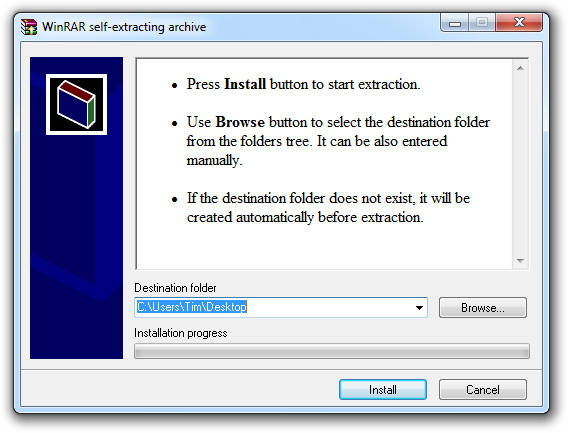
If all that is too confusing, here is a standard .zip package of the same thing.
Once you have completed these two stages, we will drag the the files to within the newly completed Bootable USB drive and flash the BIOS of the Fujitsu in the next set of instructions.
Don't worry if it goes over your head at this point. We can go through it stage by stage..0 -
Hi Nifty, Rufus;;NiftyDigits wrote: »You can get started on the USB Flash drive in advance.
Plug the USB drive into your laptop/PC and take note of the drive letter produced/that it is under.
Next, download and run Rufus and choose options shown here:
Of course the the option at the top should match the Drive letter of the USB drive(the one shown is just an example).
The second choice, as in the pic.
The third and fourth can be left as (Default)
The only difference; change Create a bootable disk using: to MS-DOS by clicking the little downward pointing triangle and choosing that option.
Then you can hit the Start button.
When finished you can close Rufus.
Downloaded, and it asked me if I wanted update, said YES?
should I have?
The default steps are different to your pic.
F; is my flash drive, changed ok
FAT is default,on mine, not 32?
2048 is default , not 4096 as in pic?
Should I select these new defaults, because, to change to PIC, is not default ?
also, do I leave USB in pc whilst pressing start, or was it just to find location letter?0 -
Hi Nifty, Rufus;;
Downloaded, and it asked me if I wanted update, said YES?
should I have?
The default steps are different to your pic.
F; is my flash drive, changed ok
FAT is default,on mine, not 32?
2048 is default , not 4096 as in pic?
Should I select these new defaults, because, to change to PIC, is not default ?
also, do I leave USB in pc whilst pressing start, or was it just to find location letter?
All sounds ok. Don't know about the Update thing though, as it should be the latest version in the first place.
Just choose MS-DOS at the bottom and then hit the Start button.
But don't forget to remove any data that you don't want to lose from the flash drive, as this process will format the drive, removing any data within.0 -
First part done. 121mb F;NiftyDigits wrote: »All sounds ok. Don't know about the Update thing though, as it should be the latest version in the first place.
Just choose MS-DOS at the bottom and then hit the Start button.
But don't forget to remove any data that you don't want to lose from the flash drive, as this process will format the drive, removing any data within.
2nd;;same as pic
3rd.Fat Default
4th;2048Default
MS-DOS
New volume label.121mb.
out of rufus.
on to Bios now.
Presume leaving stick in Pc, ?
Download Bios, BUT, only Run or cancel? option, no save. no browse.0 -
Yes. In short there are three files in the BIOS package. So download the package to your Desktop and follow the instruction to open it and reveal the folder within.
Once inside the folder, you can right click on each file and choose Send To > F:
Once complete, remove the USB drive safely and wait for the Fujitsu to arrive. 0
0 -
Hi Nifty, the problem is,when downloaded, and click on exe,on tray, dialogue box comes up, and there,s no SAVE option, just RUN, is it alright to RUN?NiftyDigits wrote: »Yes. In short there are three files in the BIOS package. So download the package to your Desktop and follow the instruction to open it and reveal the folder within.
Once inside the folder, you can right click on each file and choose Send To > F:
Once complete, remove the USB drive safely and wait for the Fujitsu to arrive.
Nothing about save to anywhere,unless it,s after RUN , which will exe program won,t it.??? haven,t tried the other alternative.? standard zip;0


This discussion has been closed.
Confirm your email address to Create Threads and Reply

Categories
- All Categories
- 354.2K Banking & Borrowing
- 254.4K Reduce Debt & Boost Income
- 455.3K Spending & Discounts
- 247.2K Work, Benefits & Business
- 603.9K Mortgages, Homes & Bills
- 178.4K Life & Family
- 261.4K Travel & Transport
- 1.5M Hobbies & Leisure
- 16.1K Discuss & Feedback
- 37.7K Read-Only Boards