We’d like to remind Forumites to please avoid political debate on the Forum.
This is to keep it a safe and useful space for MoneySaving discussions. Threads that are – or become – political in nature may be removed in line with the Forum’s rules. Thank you for your understanding.
Microsoft OneDrive is baffling me...and driving me nuts
Comments
-
To ensure your files are stored locally by default, you must change several settings within Windows and Microsoft 365(if you are using it).
- Force OneDrive to Keep Files Local (Files On-Demand)
To ensure files are physically on your hard drive rather than just placeholders, disable the "Free up space" default:
Method A (All files): Click the OneDrive icon in the taskbar > Settings (gear icon) > Sync and backup > Advanced settings > Click Download all files.
Method B (Per folder): Right-click your OneDrive folder in File Explorer and select "Always keep on this device". - Stop Automatic "Cloud-First" Saving in Office
Microsoft has rolled out "cloud-first" saving, which defaults to OneDrive even if you have local folders. To change this:
Open Word, Excel, or PowerPoint.
Go to File > Options > Save.
Uncheck "Autosave files stored in the cloud by default".
Check "Save to Computer by default".
Set the "Default local file location" to a local folder (e.g., C:\Users\Name\Documents). - Disable OneDrive "Known Folder Move" (Backup)
OneDrive often takes over your Desktop, Documents, and Pictures folders. To keep them strictly local:
Click the OneDrive icon in the taskbar > Settings > Sync and backup.
Click Manage backup.
Toggle OFF for Documents, Desktop, and Pictures. - Remove OneDrive from "Save As" Locations
To prevent accidentally saving to the cloud:
Go to File > Account > Account Privacy > Manage Settings.
Turn off "Connected Experiences" (Note: This may affect other cloud features). - Final Step: Move Existing Files
If files have already been moved to the cloud, you must manually move them from C:\Users\Name\OneDrive\Documents back to your local C:\Users\Name\Documents folder.
5 - Force OneDrive to Keep Files Local (Files On-Demand)
-
Interesting thread! I used three cloud solutions for my photos - Google Drive, OneDrive and Amazon Photos. I really don't like having local copies on my devices so I'm perfectly happy with how OneDrive works. I also have my own "cloud" system where I actually have copies of the photos and other files we use. I can access that personal cloud system anywhere in the world. OBC it's vulnerable to a fire but it lives in a - supposedly - fire resistant box.
0 -
A lot of the confusion with OneDrive is the lack of understand of how it works. It's really a cloud synchronisation tool rather than a traditional "snapshot" backup. With a normal backup you are taking a copy at a particular point in time and putting it somewhere safe. With OneDrive you are making the file available everywhere at the same time so you can access it from all of your devices or share it with others. If the file is changed then it changes everywhere.
1 -
I am so sick of playing hunt the file because OneDrive has moved them to the cloud and is demanding a ransom (in the form of a 365 subscription) to access them if you've got more than 5Gb. Reminiscent of a virus. I hadn't realised it was doing that when I got a new computer with Windows 11 and after working on a document I would save it to documents on my pc not one drive. But that meant there was an earlier version in one drive and it was a complete pain to check which one I was using. I am slowly going through the steps to download all my files back to my computer/external hard drive but the blummin thing keeps crashing. Once I have sorted out the mess, OneDrive is never going to feature again in my digital life. In fact I am so fed up I am flirting with the thought of Linux and I am definitely cancelling 365 and using Libre Office.
If it really was a backup that would be one thing but it's not. On the other hand external hard drives do fail so one is none!. I bought a Toshiba hard drive for my music and photos because there wasn't enough space on the internal SSD. Suddenly got corrupted for no obvious reason. I was able to get someone to retrieve what was on there but I don't use Toshiba any more - I've since read they are prone to corrupting. Western Digital seem to have a reputation for greater reliability but who knows? So I have two and back up alternately and keep one at my daughter's place. Only problem with that is lack of memory - hers! She often forgets to bring it with her when she comes over
It doesn't matter if you are a glass half full or half empty sort of person. Keep it topped up! Cheers!0 -
re corruption- just to check that you do 'safely remove' the external.drive before unplugging it?
2 -
Used to be good advice, but this feature has been removed from Windows for a while now.
The 321 philosopy still holds true for very important data (3 copies on 2 different media types with 1 in a different physical location).I think the problem now is that people are used to such good reliability of storage devices that many younger people have never lost data due to a hardware or software failure, which certainly increases complacency.
• The rich buy assets.
• The poor only have expenses.
• The middle class buy liabilities they think are assets.2 -
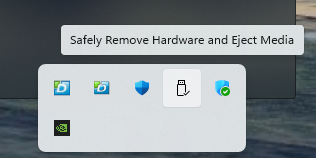
It's still there in Windows 11 25H2 (this is a 1TB external drive)
 0
0 -
This feature is very much still in Windows now and although normally write caching is turned off by default for external USB drives you can still get data corruption if you simply pull it out without safely ejecting it
This seems to be particularly true for SSD external drives. I am not sure why but if I had to guess I would say it is because at times Windows does housekeeping in the background on the drive
1 -
There is a certain generation of personal computer users who will NEVER disconnect an external storage device without clicking "unmount" or "safely remove" or "confirm burn to CD" or whatever extra steps you HAVE TO DO.
Suspect that MS have left the clicky box in Windows (despite it doing nothing) otherwise I'd never disconnect a USB stick again.
0 -
Are you absolutely sure that it does nothing? I've seen 'unable to eject device', the eject then works about 10 secs later
Edit to add. This is the effect it has
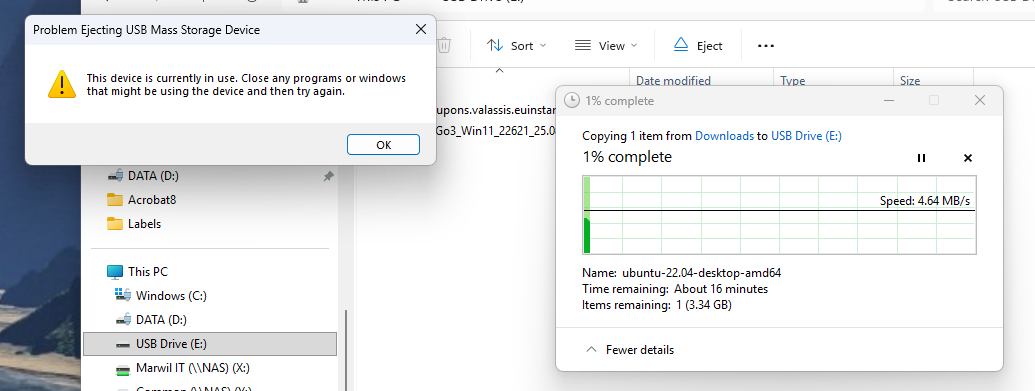
It doesn't stop you but it refuses to be a party to possibly corrupting your data
1















Confirm your email address to Create Threads and Reply

Categories
- All Categories
- 354.7K Banking & Borrowing
- 254.5K Reduce Debt & Boost Income
- 455.5K Spending & Discounts
- 247.5K Work, Benefits & Business
- 604.4K Mortgages, Homes & Bills
- 178.6K Life & Family
- 262K Travel & Transport
- 1.5M Hobbies & Leisure
- 16.1K Discuss & Feedback
- 37.7K Read-Only Boards