We’d like to remind Forumites to please avoid political debate on the Forum.
This is to keep it a safe and useful space for MoneySaving discussions. Threads that are – or become – political in nature may be removed in line with the Forum’s rules. Thank you for your understanding.
📨 Have you signed up to the Forum's new Email Digest yet? Get a selection of trending threads sent straight to your inbox daily, weekly or monthly!
Laptop Wifi Issue
Comments
-
Certain types of Wifi cards are known to just spontaneously hang and some laptop manufactures have extra software to effectively catch it.
This seems primarily related to Realtek Wifi cards in laptops. They're basically cheap pieces of junk.
As most laptops from brands tend to be locked to certain types, you can't just put any old replacement card inside it, so the USB option is the next best thing.0 -
This laptop is using a USB wifi aerial. To install I did not disconnect anything and it was was not particularly difficult to connect via the USB aerial.
0 -
It usually disappears from Device Manager though I have seen it there after a fail and I can't remember whether I tried the disable/enable.
0 -
The internal adapter is media-tek
0 -
I've installed my USB wifi adapter and previous suggestions have proved very helpful because the adapter does not always reconnect when the computer goes to sleep and I have to disable and re-enable to get the adapter to "wake up". The internal doesn't have this issue so I try to remember to enable that one when I'm just using occasionally (usually evenings) but use the USB adapter when I am "busy working" because that doesn't go missing and thus capable of causing significant problems.
I'm happy with having the resilience of two wifi methods.
1 -
I used to have problems with the wifi dropping out on a Win10 laptop.
Whilst I never quite solved what was causing it I did come up with a workaround.
Type the following into notepad:
netsh wlan connect name="your-wifi-name-here"You usually do need the quotation marks around you own wifi's name.
Save it to your desktop as "Connect wifi.bat" or similar - but it must have that .bat extension (ie not .txt).
I used to keep it bottom right of the Desktop down near the wifi icon in the System Tray like this.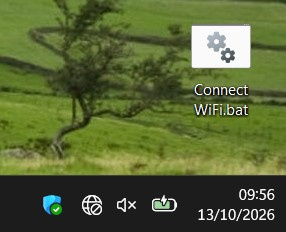
Whenever the wifi drops out simply double-click "Connect wifi.bat" to quickly reconnect.
2 -
Did you do this with both?:
1 -
Thanks @newcad. I don't think that will work for the internal adapter as it disappears from Device Manager when it fails but I will try it for the USB adapter.
Thanks @sammyboyd. As far as I can see that facility is not available in Windows 11 at least not without editing the Registry which I don't fancy doing. It also would not assist with the internal wifi which doesn't have the sleep issue.
0 -
You are mistaken. Just follow the very simple guide. Alternatively, press and hold the Windows logo key + X and then choose Device Manager from that menu or type Device Manager into the Search box on the Taskbar at the bottom of the screen next to the Windows logo, choose to open Device Manager, go to Network Adapters…
0 -
Hi @SammyBoyd , I'm not knowledgeable enough to fully explain it but the Power Management options do not show on my laptop.
0









Confirm your email address to Create Threads and Reply

Categories
- All Categories
- 355.8K Banking & Borrowing
- 254.9K Reduce Debt & Boost Income
- 456.2K Spending & Discounts
- 248.4K Work, Benefits & Business
- 606K Mortgages, Homes & Bills
- 179K Life & Family
- 263.8K Travel & Transport
- 1.5M Hobbies & Leisure
- 16.2K Discuss & Feedback
- 37.7K Read-Only Boards