We’d like to remind Forumites to please avoid political debate on the Forum.
This is to keep it a safe and useful space for MoneySaving discussions. Threads that are – or become – political in nature may be removed in line with the Forum’s rules. Thank you for your understanding.
📨 Have you signed up to the Forum's new Email Digest yet? Get a selection of trending threads sent straight to your inbox daily, weekly or monthly!
The Forum now has a brand new text editor, adding a bunch of handy features to use when creating posts. Read more in our how-to guide
PC says it's connected to the internet - but it's not!

HC_2
Posts: 2,239 Forumite
in Techie Stuff
I've had some wonderful help previously from you clever people, and so I'm hoping that you might be able to point me in the right direction this time too. I know there are sooo many threads with wireless problems, but I can't find a thread with a similar problem to mine. I've tried to help myself by going through everything I know, but to no avail.
I have a desktop PC, running Windows XP Pro. It's connected wirelessly to a Netgear router.
I recently replaced the Belkin USB wireless adapter I'd been using, as it kept falling over and was driving me mad, with a Netgear one.
It's been working fine, although I cannot see how to make the Windows utility remember to manage the connection. Each time I log on, it says it's connected, but it isn't. I have to go to Properties > Wireless Networks > Let Windows Configure my Wireless Settings. Then it connects with no problem. This is a slight hassle to do each time, I suppose, but it's no big deal.
This afternoon it said it was connected as usual - and it wasn't, as usual.
However, this time nothing I could do would make it connect. Windows was managing the utility, but there was no connection. I don't think that the router is the problem, as the laptop I'm typing on now is absolutely fine.
The icons bottom right tell me that there is an 'excellent' connection.
I've restarted the Wireless Zero Configuration thingie.
I've rebooted.
I've clicked Repair on the Wireless Connection drop-down list.
I've unplugged the Netgear adapter and plugged it back in again.
I've deleted my network from the list, and tried to get it find it again and connect.
I've changed the TCP/IP properties from automatic and put them in manually. After trying various DNS addresses, I hit success and it said that it was connected, but I still can't access the internet. (The IP address is set by the router, so it's always the same, even if it's on automatic.)
If I change TCP/IP back to Automatic, it says for ages that it's acquiring network address, and then says No Connectivity.
I can't ping the router. It says the destination is unreachable.
So until today, it was working, with TCP/IP addresses on automatic.
Now, with these settings it hangs on Acquiring Network Address and then won't connect.
If I put them in manually, it says it's connected but it's not.
Apologies if I've rambled on. I just wanted to try and give as much information as I could.
If anyone could help, I'd be really grateful. It used to fall over so often using the Belkin adapter, and now this problem with the new one, that I'm tempted to ask my husband to wire it to the router - and that's a long length of cable!
I have a desktop PC, running Windows XP Pro. It's connected wirelessly to a Netgear router.
I recently replaced the Belkin USB wireless adapter I'd been using, as it kept falling over and was driving me mad, with a Netgear one.
It's been working fine, although I cannot see how to make the Windows utility remember to manage the connection. Each time I log on, it says it's connected, but it isn't. I have to go to Properties > Wireless Networks > Let Windows Configure my Wireless Settings. Then it connects with no problem. This is a slight hassle to do each time, I suppose, but it's no big deal.
This afternoon it said it was connected as usual - and it wasn't, as usual.
However, this time nothing I could do would make it connect. Windows was managing the utility, but there was no connection. I don't think that the router is the problem, as the laptop I'm typing on now is absolutely fine.
The icons bottom right tell me that there is an 'excellent' connection.
I've restarted the Wireless Zero Configuration thingie.
I've rebooted.
I've clicked Repair on the Wireless Connection drop-down list.
I've unplugged the Netgear adapter and plugged it back in again.
I've deleted my network from the list, and tried to get it find it again and connect.
I've changed the TCP/IP properties from automatic and put them in manually. After trying various DNS addresses, I hit success and it said that it was connected, but I still can't access the internet. (The IP address is set by the router, so it's always the same, even if it's on automatic.)
If I change TCP/IP back to Automatic, it says for ages that it's acquiring network address, and then says No Connectivity.
I can't ping the router. It says the destination is unreachable.
So until today, it was working, with TCP/IP addresses on automatic.
Now, with these settings it hangs on Acquiring Network Address and then won't connect.
If I put them in manually, it says it's connected but it's not.
Apologies if I've rambled on. I just wanted to try and give as much information as I could.
If anyone could help, I'd be really grateful. It used to fall over so often using the Belkin adapter, and now this problem with the new one, that I'm tempted to ask my husband to wire it to the router - and that's a long length of cable!
0
Comments
-
Try turning off that Zero Configuration thing - http://paininthetech.com/2005/10/25/disable-wireless-zero-configuration-in-windows-xp/ , caused me no end of hassle when I ran windows. Use the software that came with the netgear adapter.“I look like Spiderman at a funeral”~ Karl Pilkington0
-
...and i'm the opposite, uninstall the netgear software (but not the driver) so wzc is default, though i can't see how that would solve the problem either.
try changing wireless channel, maybe another network causing interference?
change the tcp/ip settings to
ip 192.168.0.99
subnet 255.255.255.0
default gateway 192.168.0.1
pri dns 208.67.222.222
sec dns 208.67.222.220
if its a dns issue, opendns should fix it (servers above)Utinam logica falsa tuam philosophiam totam suffodiant.0 -
Try turning off that Zero Configuration thing - http://paininthetech.com/2005/10/25/disable-wireless-zero-configuration-in-windows-xp/ , caused me no end of hassle when I ran windows. Use the software that came with the netgear adapter.
I disabled it but it doesn't seem to have made any difference.
I've uninstalled the adapter, and reinstalled, still with the WZC disabled. It connected briefly but then said No Connectivity.
So I turned WZC back on, and tried to connect again. But no luck....and i'm the opposite, uninstall the netgear software (but not the driver) so wzc is default, though i can't see how that would solve the problem either.
try changing wireless channel, maybe another network causing interference?
change the tcp/ip settings to
ip 192.168.0.99
subnet 255.255.255.0
default gateway 192.168.0.1
pri dns 208.67.222.222
sec dns 208.67.222.220
if its a dns issue, opendns should fix it (servers above)
Tony, how would I uninstall the software and not the driver? I thought it was all one piece of software. I downloaded it from here: http://kbserver.netgear.com/products/WPN111.asp
(version 1.1 for XP)
How can I separate the two?
I've changed the TCP/IP setting as you suggest, and it says it's connected perfectly. But it isn't. I can't access the internet. Very strange. Perhaps I should ring Netgear. But I know they'll want to fiddle with my router settings and then (of course) I shall have trouble with my laptop connection.
Thank you for your help!0 -
If it is a usb adapter, when you install the software, there is an option to let windows manage it, so the easy way is to uninstall and reinstall the netgear software.
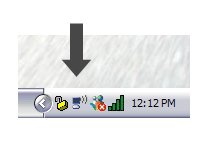
properties.
tick let windows manage
make sure preferred networks is automatic and your encryption key/type is correct.
advanced
access point infrastrucure networks only selected, and automatically connect to non preferred networks unticked.
There is usually a let windows manage option in the netgear config screen, can't remember the layout atmEver get the feeling you are wasting your time? :rolleyes:0 -
that file is (i think) just the driver. can you ping (start>run>CMD ping https://www.bbc.co.uk or ping 212.58.253.74).
you are, of course, trying to connect to your own network? and using the correct passphrase? perhaps temporarily change to no security, also, did you change the wireless channel?
if all fails, netgear may be worth a call..Utinam logica falsa tuam philosophiam totam suffodiant.0 -
No, I can't ping www.bbc.co.uk, or my router.
I am trying to connect to my own network, definitely. It's named as my surname and there are only two in the list of Available Wireless Networks: mine and my neighbour's. Security is disabled.
I haven't changed the channel. If I do that, do I need to change it on the the problem PC and the laptop I'm on now - or will they detect the new channel automatically?
What I hate about it is that it was working fine one minute - and then the next, it refuses to work. Grrr!0 -
Only other thing I can think of is when you disable zero config you also make sure in the properties section of the wireless network connection, wireless networks tab the "Use Windows to configure wireless network " check-box is unchecked.
It's all coming back to me now the hassle I had and as tonyhague has aluded to completely opposite solutions seem to work for no apparent reason.“I look like Spiderman at a funeral”~ Karl Pilkington0 -
Problem is now solved.
I called Netgear (in the USA, as usual, at 1p per minute using 1899 - so much cheaper than ringing the UK helplines) and they were quite baffled that everything could seem 100% connected and yet the PC would not access the Internet.
I won't go through the ins and outs, but the solution was this:
I turned on the PC that is attached to the router. Hey presto, connection on the other PC was fine. It now works perfectly, even when I took off the manual TCP/IP settings and put it back to automatic, and turned the other PC off.
Just doesn't make sense to me! The PC attached to the router is rarely turned on, and both wireless computers work fine.
Netgear can't understand it either. But at least things are working now. And I've got another thing to try next time things go wrong (which will no doubt be very soon).
Thank you all so much for your help.0 -
Don't think I helped at all there but glad you got it sorted.“I look like Spiderman at a funeral”~ Karl Pilkington0
-
i don't know how it worked, but glad it did..
 Utinam logica falsa tuam philosophiam totam suffodiant.0
This discussion has been closed.
Confirm your email address to Create Threads and Reply

Categories
- All Categories
- 354.4K Banking & Borrowing
- 254.4K Reduce Debt & Boost Income
- 455.4K Spending & Discounts
- 247.3K Work, Benefits & Business
- 604K Mortgages, Homes & Bills
- 178.4K Life & Family
- 261.5K Travel & Transport
- 1.5M Hobbies & Leisure
- 16K Discuss & Feedback
- 37.7K Read-Only Boards